Settings
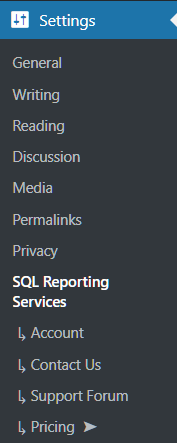
Once the module is installed, you can access the settings for the plugin to configure the report server. The settings can be accessed from the site admin section, click the "Settings" menu and then the "SQL Reporting Services" option shown in the following screenshot.
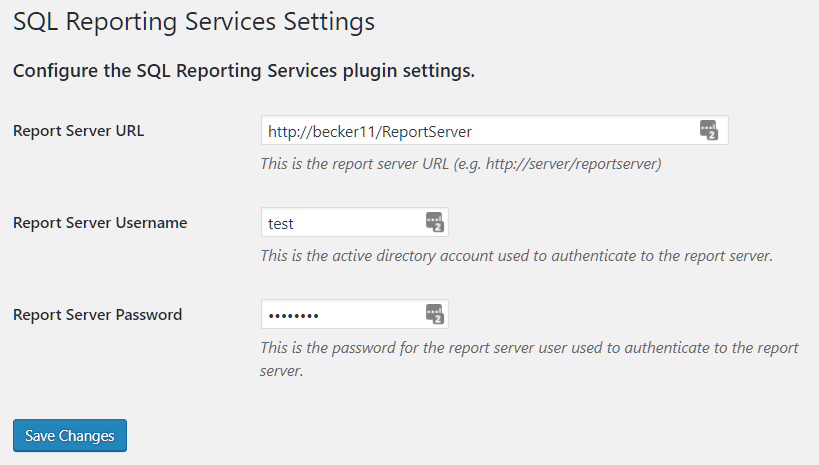
From there, you will be presented with the following screen where you can enter the report server connection information as shown in the following screenshot:
Field |
Description |
Report Server URL |
This is the URL to the report server where the API will be accessed to interact with the report server. This is not the report manager URL, this is the report server URL which can be found from the SQL Server Reporting Services Configuration screen if you are unsure what it is. |
Report Server Username |
This is the active directory user that will be used to access the report server API. This is a user that should be setup with the role of "Content Manager" within the Report Manager at the highest level. |
Report Server Password |
This is the password for the active directory user that will be used to access the report server API. |
Once the settings are saved, click the "Save Changes" button. You are now ready to use the "ssrs" shortcode to display reports within WordPress!
You can view your license information from the "account" menu. You can also upgrade your license from the "Pricing" screen.